

Before you start, launch your Sales Assistant and copy your install snippet. Keep it on your clipboard, you’ll paste it in below.
Add the snippet with Code Injection
Squarespace has a Code Injection area for adding site-wide code. The Footer injection point is the right place for a chat widget.- In your Squarespace dashboard, go to Website, then Pages.
- At the bottom of the Pages panel, open Custom Code, then Code Injection.
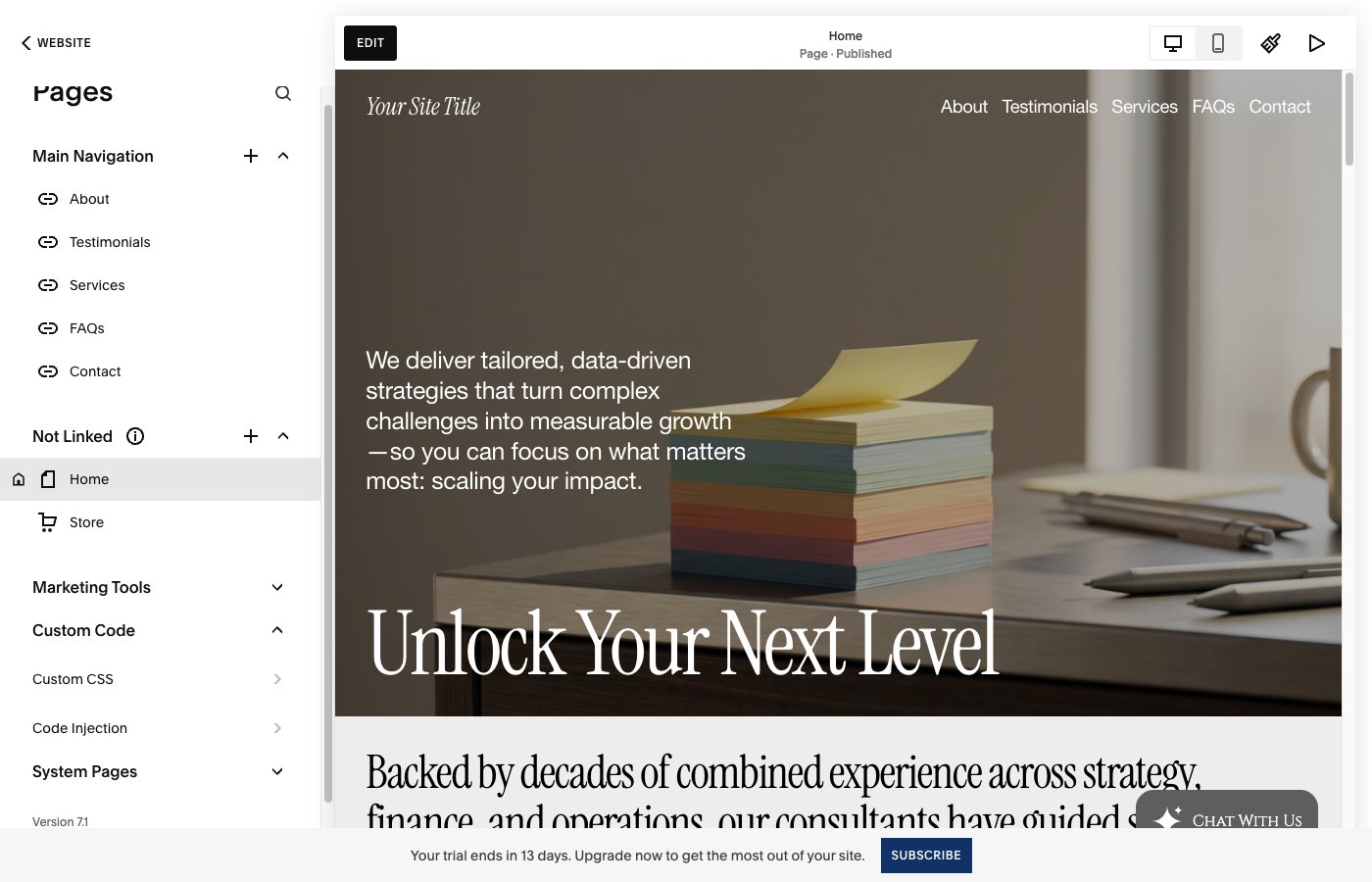
Custom Code sits at the bottom of the Pages panel. Open it and choose Code Injection.
- Paste your EasyMate snippet into the Footer box, then click Save at the top left.
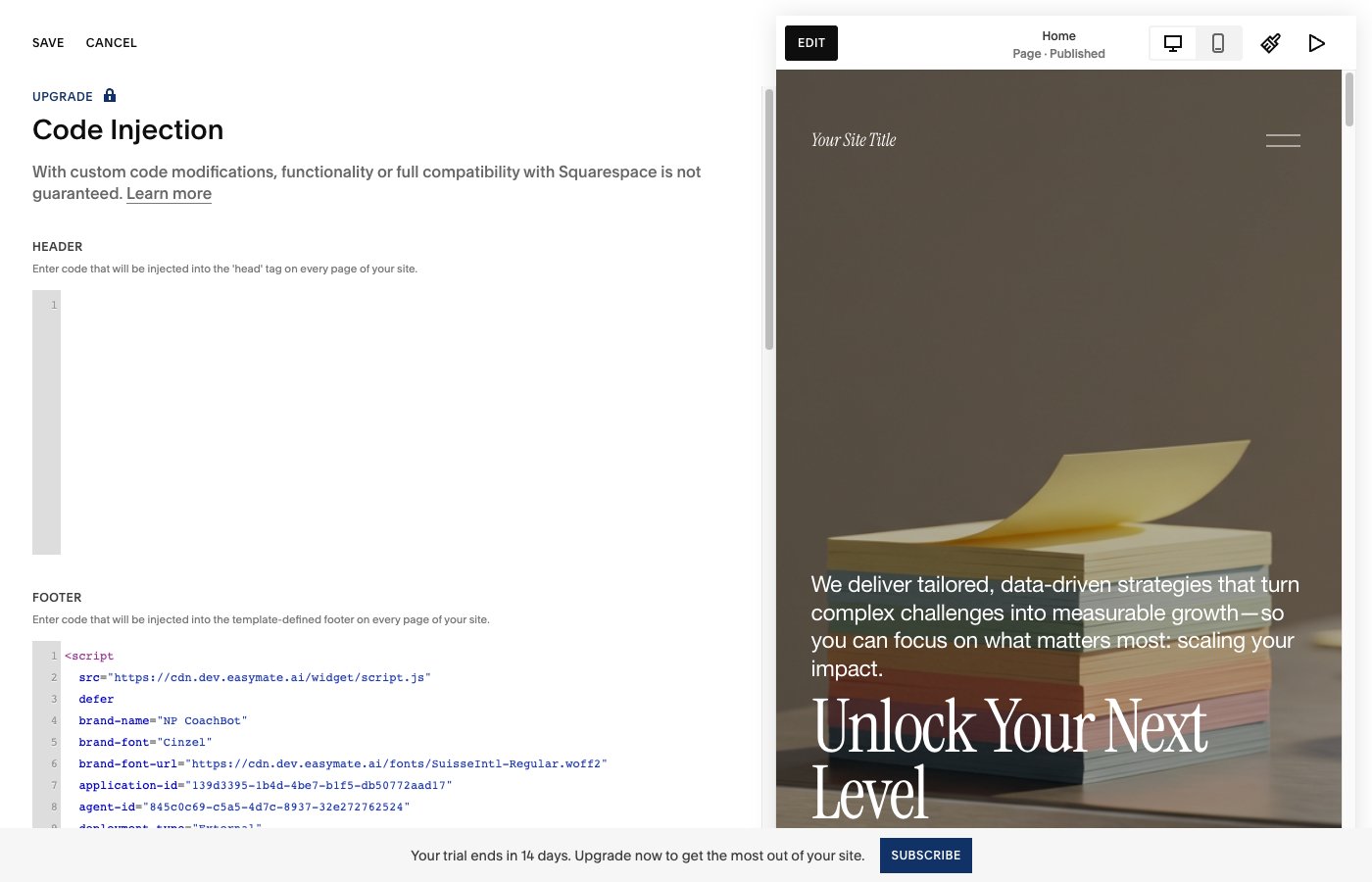
Paste your snippet into the Footer box on the Code Injection page.
Verify it’s working
- Open your live site in a new browser tab (or an incognito window).
- Look for the chat button, usually in a bottom corner.
- Click it and send a test message.
Code Injection runs on your live site, not in the Squarespace editor preview. Always check on the published site.