

Before you start, launch your Sales Assistant and copy your install snippet. Keep it on your clipboard, you’ll paste it in below.
Add the snippet with custom code
Framer has a site-wide custom code area, which loads the widget on every page.- In the Framer editor, open the menu at the top left and choose Settings.
- In the left list under Site Settings, click Code.
- Click Add Script.
- Paste your EasyMate snippet into the Code box.
- Set Placement to End of
<body>and Page to All, and give it a Name. - Click Add.
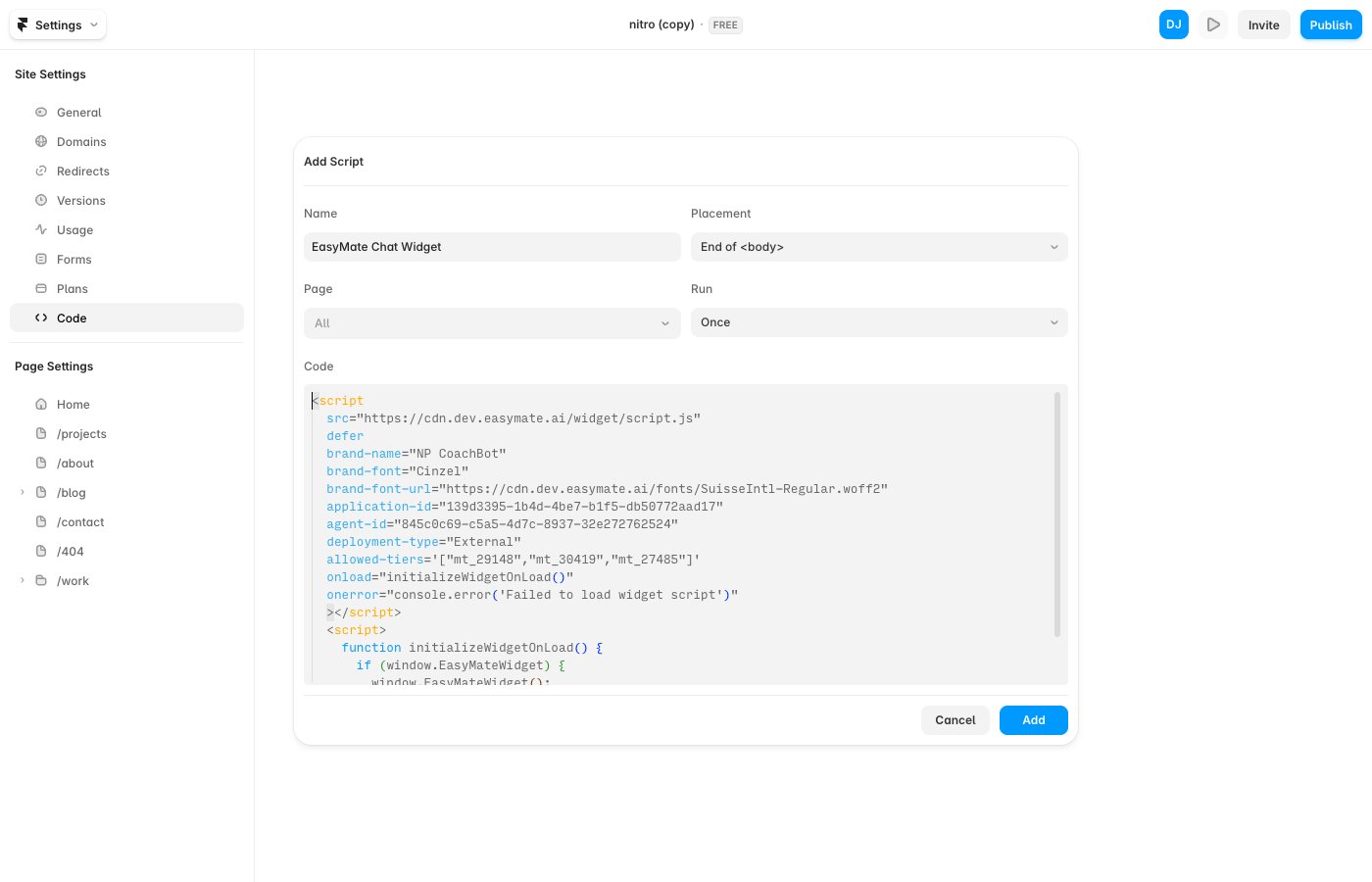
Paste your snippet, set Placement to End of body and Page to All, then click Add.
Why “End of
<body>”? The widget needs to load after your page content. Placing it at the end of the body is the most reliable spot.Verify it’s working
- Publish your site (custom code only runs on the published site, not the Framer editor or preview).
- Open your live site in a new browser tab (or an incognito window).
- Look for the chat button, usually in a bottom corner, and send a test message.