

Before you start, launch your Sales Assistant and copy your install snippet. Keep it on your clipboard, you’ll paste it in below.
Add the widget as a tag
- In GTM, go to Tags → New.
- For Tag Configuration, choose Custom HTML.
- Paste your EasyMate snippet into the HTML box.
- For Triggering, choose All Pages.
- Save, then Submit / Publish your GTM container.
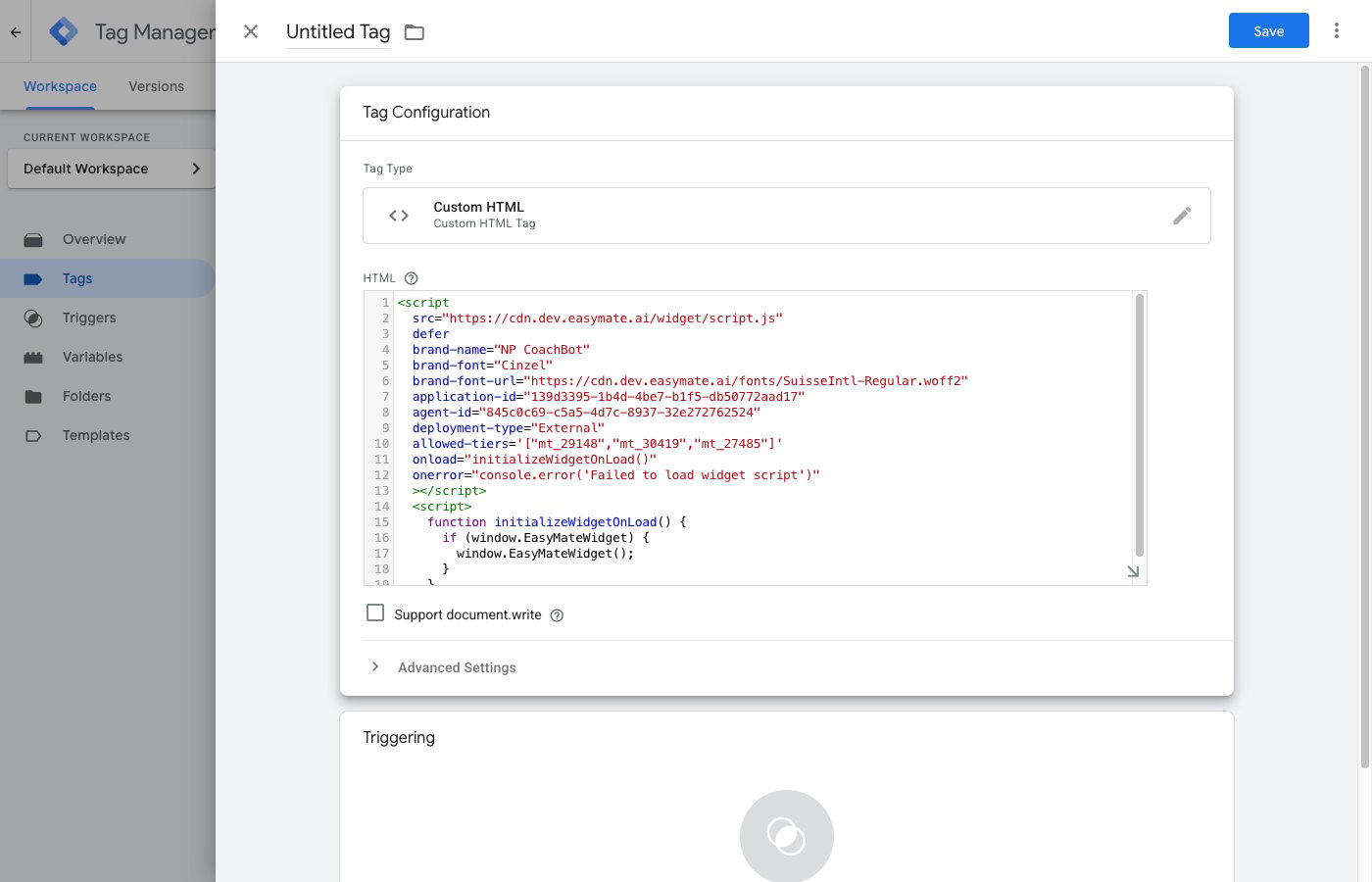
A Custom HTML tag with the EasyMate snippet. Add an All Pages trigger, then Save and Publish.
Verify it’s working
- Open your live site in a new browser tab (or an incognito window).
- Look for the chat button, usually in a bottom corner, and send a test message.