

Your overall brand (logo and colors) comes from what EasyMate picked up during onboarding. The settings here let you tailor your Leads Portal specifically.
Look and feel
Open your Leads Portal and go to Look and Feel. Pick a theme preset to style the whole app at once, then fine-tune using the tabs:- Colors: your primary, secondary, and accent colors, used across buttons, headers, and backgrounds.
- Logo: upload your own logo.
- Typography: the font your app uses.
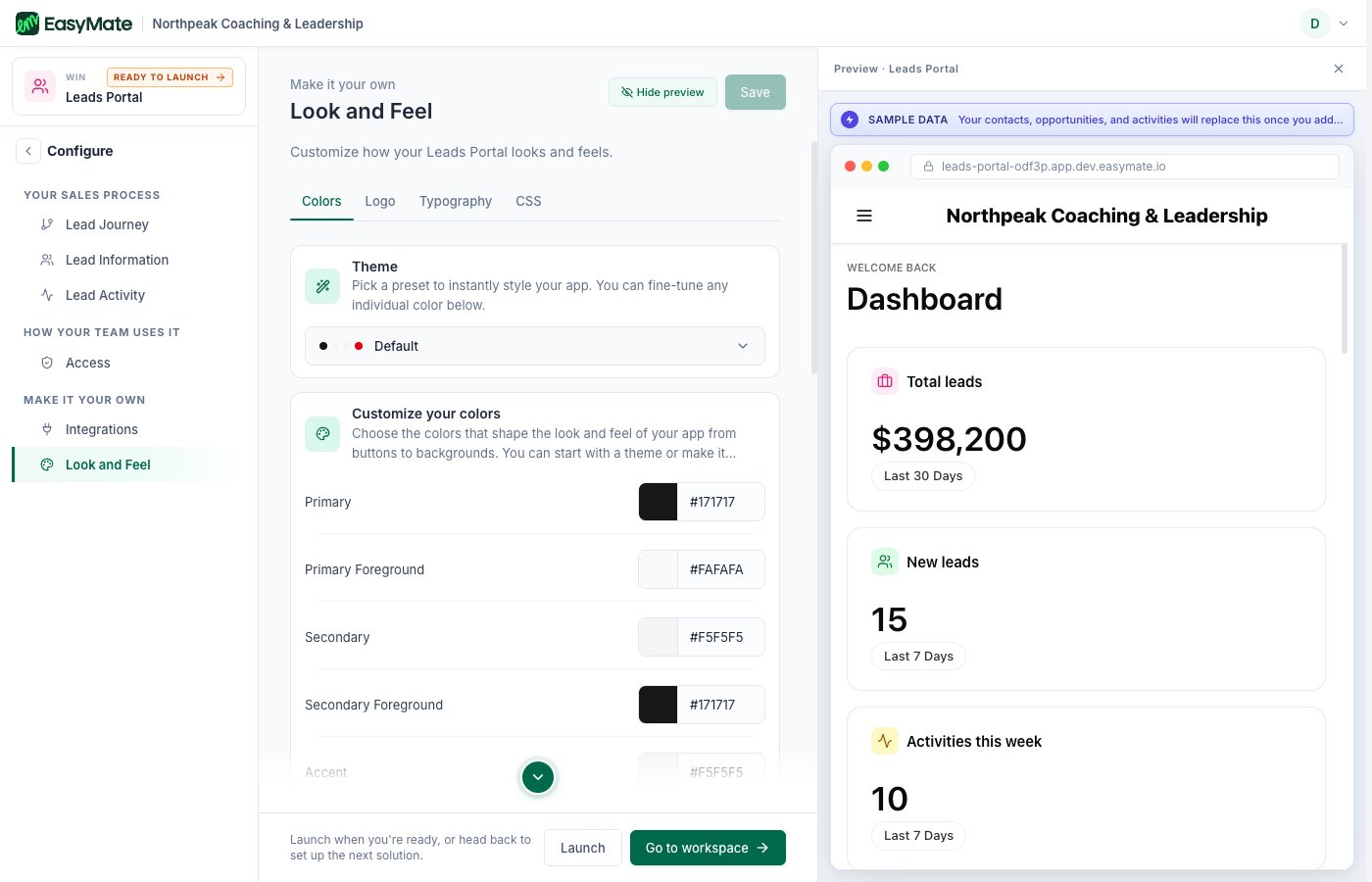
Pick a theme preset or set your own colors, logo, and fonts. The preview shows the result instantly.
Integrations
From Integrations, connect the tools you already use, such as your calendar, email, payments, and chat. A connection shows as Connected once it’s set up, or Not connected if it still needs attention.More integrations are being added over time. If a tool you want isn’t available yet, check back later.