> ## Documentation Index
> Fetch the complete documentation index at: https://easymate.ai/docs/llms.txt
> Use this file to discover all available pages before exploring further.
# Squarespace
> Add your Sales Assistant chat widget to Squarespace with site-wide Code Injection.
This guide shows how to put your Sales Assistant on a Squarespace site as a chat widget, so it appears on every page.
Before you start, [launch your Sales Assistant and copy your install snippet](/docs/solutions/sales-assistant/deploying/overview). Keep it on your clipboard, you'll paste it in below.
Code Injection requires a **Business plan or higher** on Squarespace. It isn't available on the Personal plan.
## Add the snippet with Code Injection
Squarespace has a **Code Injection** area for adding site-wide code. The **Footer** injection point is the right place for a chat widget.
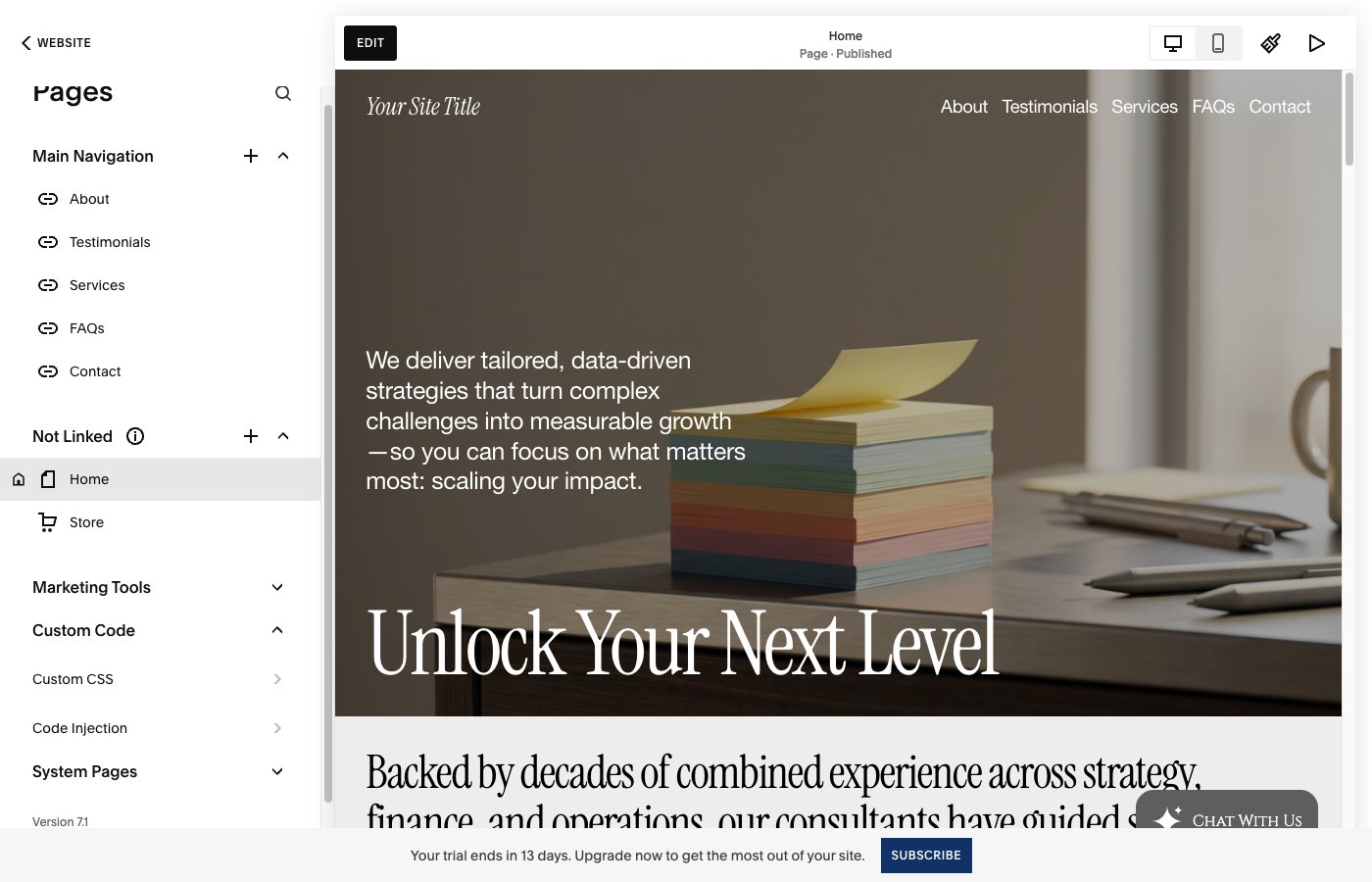
1. In your Squarespace dashboard, go to **Website**, then **Pages**.
2. At the bottom of the Pages panel, open **Custom Code**, then **Code Injection**.
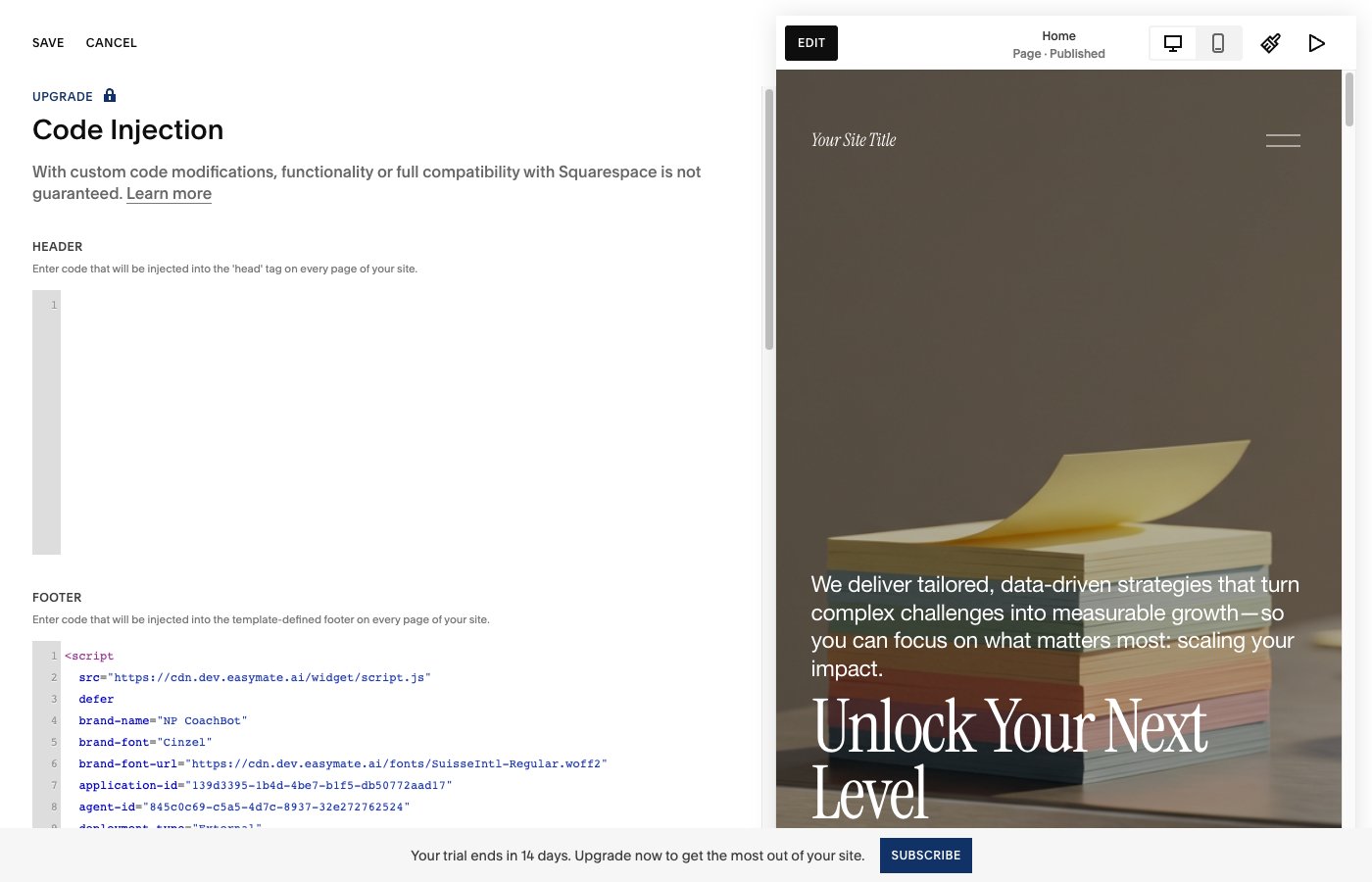
 3. Paste your EasyMate snippet into the **Footer** box, then click **Save** at the top left.
That's it, the widget now loads on every page of your site.
3. Paste your EasyMate snippet into the **Footer** box, then click **Save** at the top left.
That's it, the widget now loads on every page of your site.
 ## Verify it's working
1. Open your live site in a new browser tab (or an incognito window).
2. Look for the chat button, usually in a bottom corner.
3. Click it and send a test message.
Code Injection runs on your **live site**, not in the Squarespace editor preview. Always check on the published site.
If it doesn't appear, see [Troubleshooting](/docs/solutions/sales-assistant/deploying/troubleshooting).
## Verify it's working
1. Open your live site in a new browser tab (or an incognito window).
2. Look for the chat button, usually in a bottom corner.
3. Click it and send a test message.
Code Injection runs on your **live site**, not in the Squarespace editor preview. Always check on the published site.
If it doesn't appear, see [Troubleshooting](/docs/solutions/sales-assistant/deploying/troubleshooting).