> ## Documentation Index
> Fetch the complete documentation index at: https://easymate.ai/docs/llms.txt
> Use this file to discover all available pages before exploring further.
# Branding and settings
> Make your Leads Portal look like your brand, connect the tools you use, and set the web address your team signs in at.
Your Leads Portal is your own app, so you can make it look like your brand and connect it to the tools you already use. You'll find these from your Leads Portal after it's set up.
Your overall brand (logo and colors) comes from what EasyMate picked up during [onboarding](/docs/getting-started/onboarding). The settings here let you tailor your Leads Portal specifically.
## Look and feel
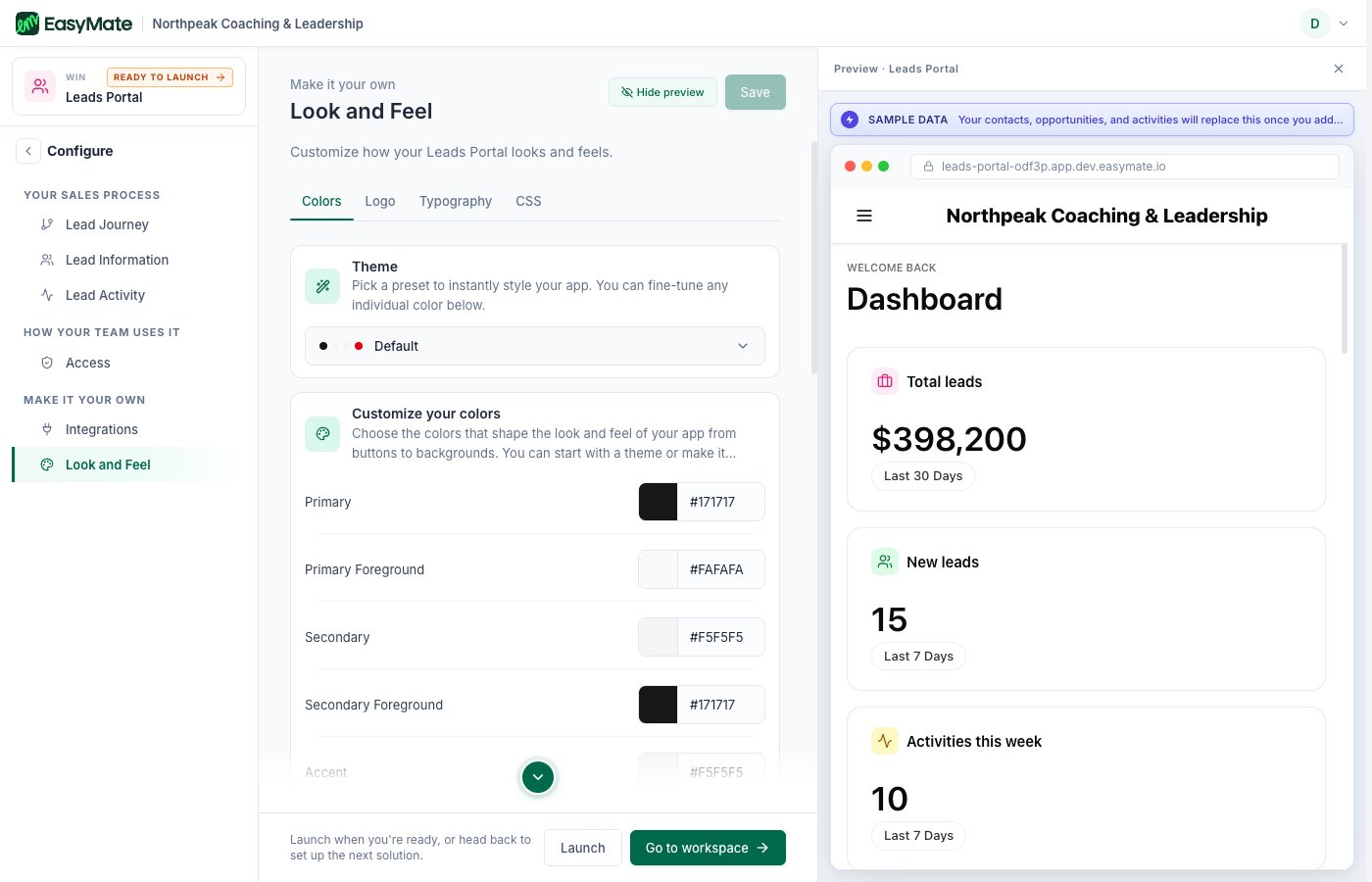
Open your Leads Portal and go to **Look and Feel**. Pick a theme preset to style the whole app at once, then fine-tune using the tabs:
* **Colors**: your primary, secondary, and accent colors, used across buttons, headers, and backgrounds.
* **Logo**: upload your own logo.
* **Typography**: the font your app uses.
The preview on the right updates as you go, so you can see the result before your team sees it.
 ## Integrations
From **Integrations**, connect the tools you already use, such as your calendar, email, payments, and chat. A connection shows as **Connected** once it's set up, or **Not connected** if it still needs attention.
More integrations are being added over time. If a tool you want isn't available yet, check back later.
## Your web address
Your Leads Portal lives at its own web address, which you share with your team so they can sign in. You set this on the Leads Portal's **Launch** screen. See [Leads Portal](/docs/solutions/leads-portal) for launching, and [Your team and roles](/docs/solutions/leads-portal/team) for inviting people.
## Integrations
From **Integrations**, connect the tools you already use, such as your calendar, email, payments, and chat. A connection shows as **Connected** once it's set up, or **Not connected** if it still needs attention.
More integrations are being added over time. If a tool you want isn't available yet, check back later.
## Your web address
Your Leads Portal lives at its own web address, which you share with your team so they can sign in. You set this on the Leads Portal's **Launch** screen. See [Leads Portal](/docs/solutions/leads-portal) for launching, and [Your team and roles](/docs/solutions/leads-portal/team) for inviting people.